Getting started with ProfitSync
Create your workspace, find your way around and record your first money in minutes.
Step by step
Pick personal or business
When you sign up, choose Personal to track your own money, or Business to track clients, quotes and a team. You can add the other kind later.
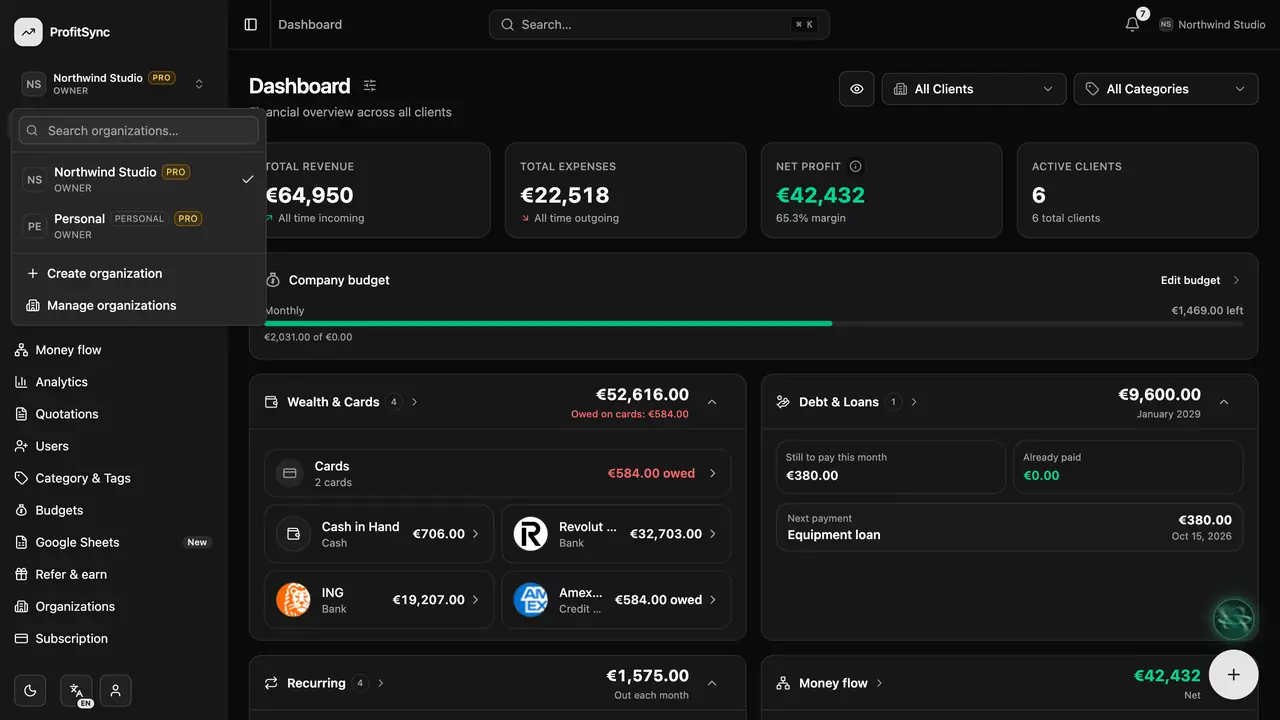
Find your way around
Every section lives in the sidebar on desktop and under the tabs and More menu on your phone. The workspace switcher at the top shows where you are.
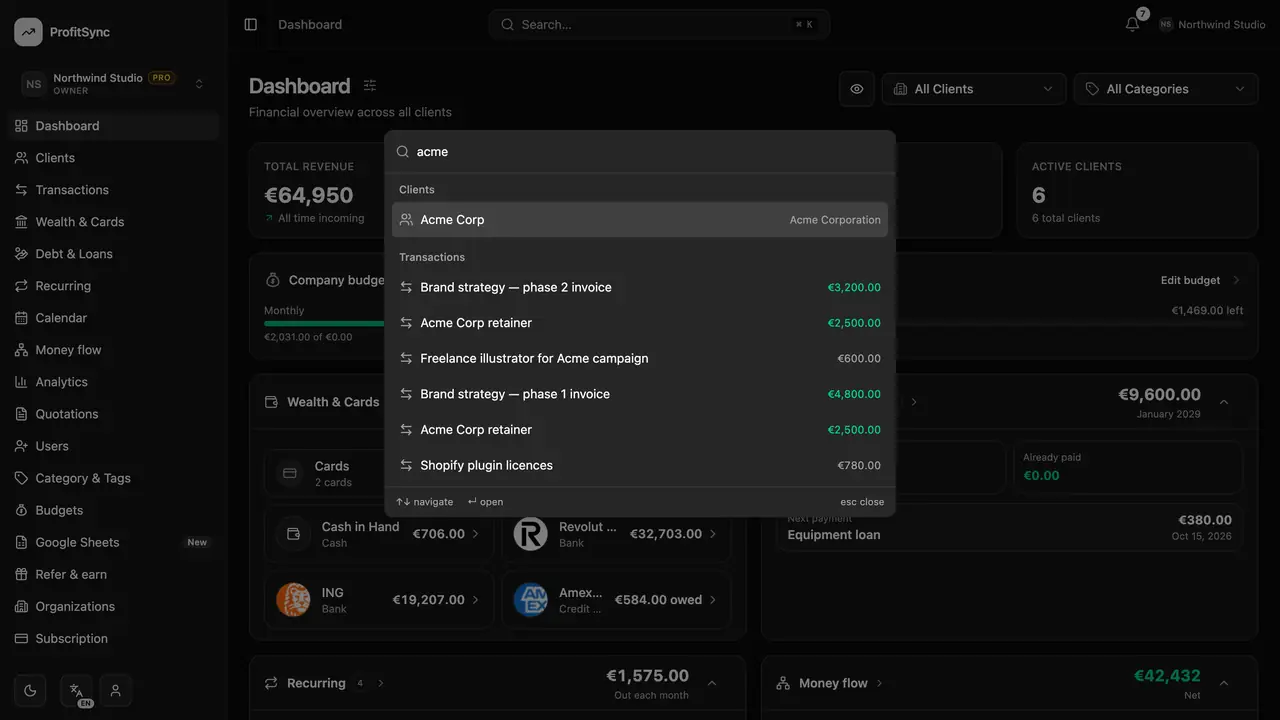
Search anything with ⌘K
Press ⌘K (Ctrl K on Windows) or tap the search bar to jump to any page, client, transaction, account or help guide.
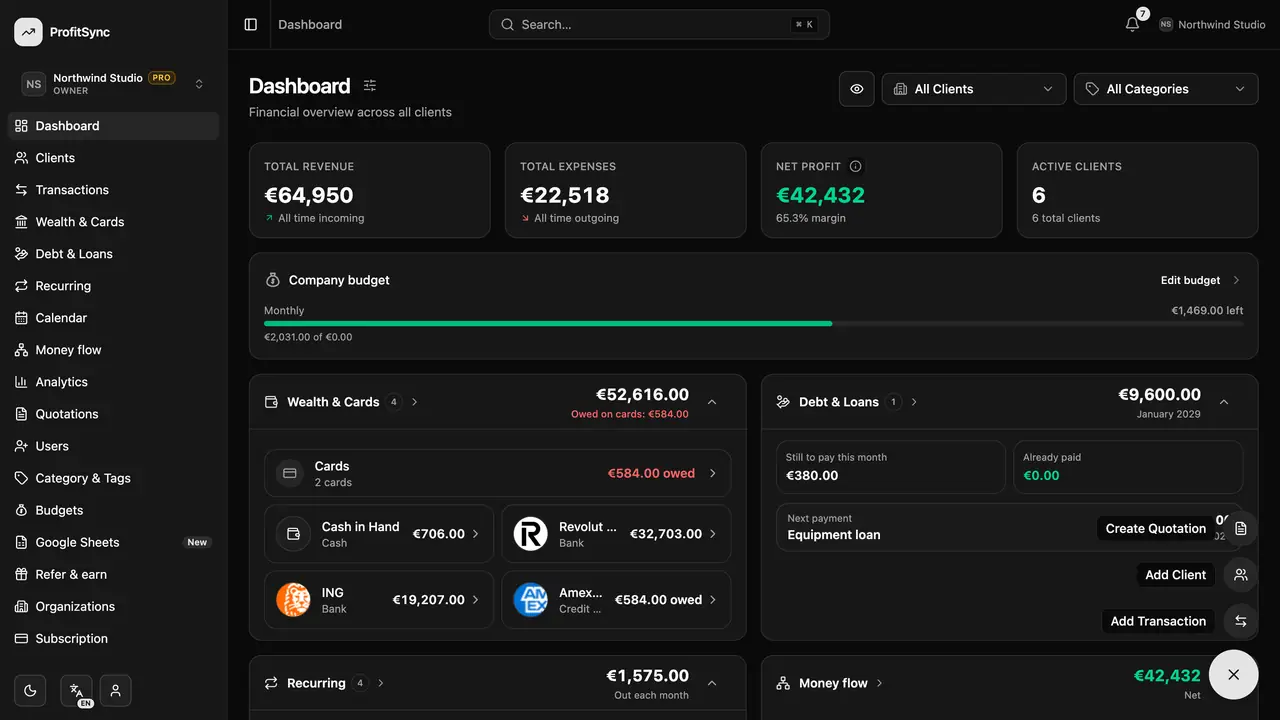
Add money from anywhere
The round + button in the corner adds a transaction, a client or a quotation without leaving the page you are on.
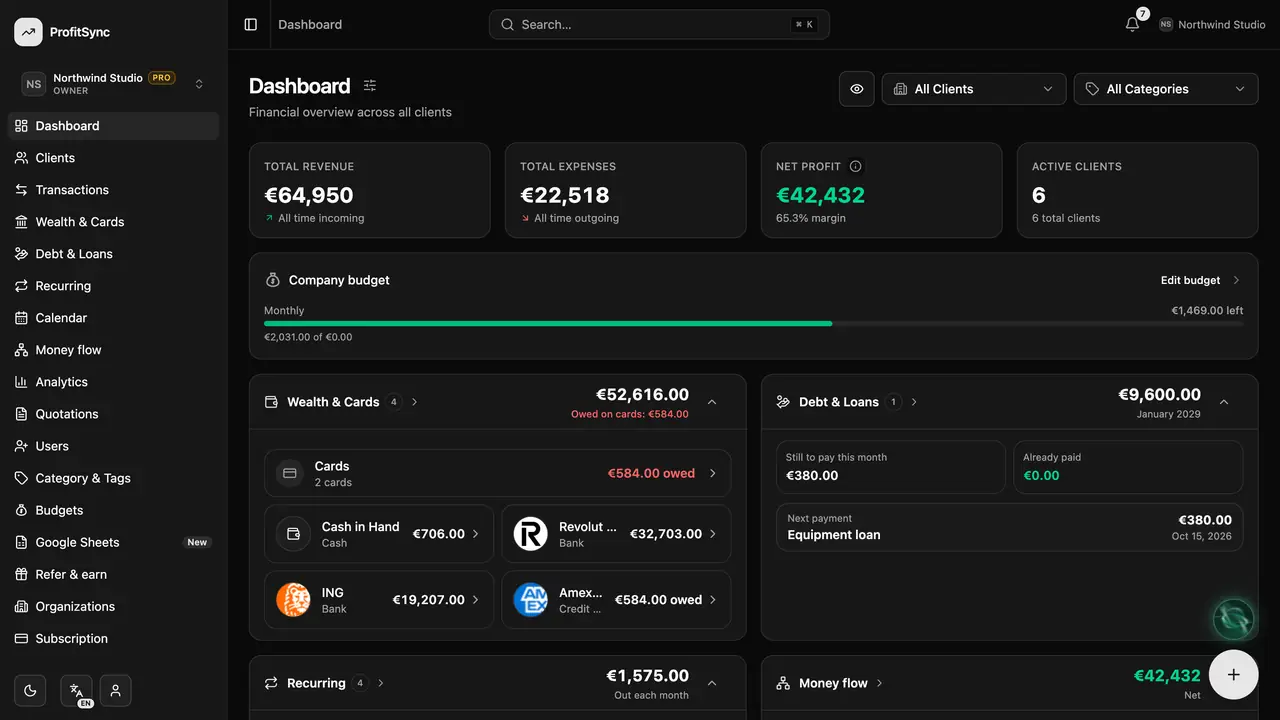
Get help on every screen
Tap the small ⓘ next to a page title to read a short explanation and watch a video, or open the full guide in the Help center.
Good to know
- Your data stays in the workspace it was created in. Switch workspaces from the name at the top of the sidebar.
- The app works the same on the web, as an installed app and on Android and iPhone.
Related guides
Write to us and a real person will reply. Contact support