Quotations
Create quotes for prospects, track them from draft to accepted and turn a win into a client in one click.
Step by step
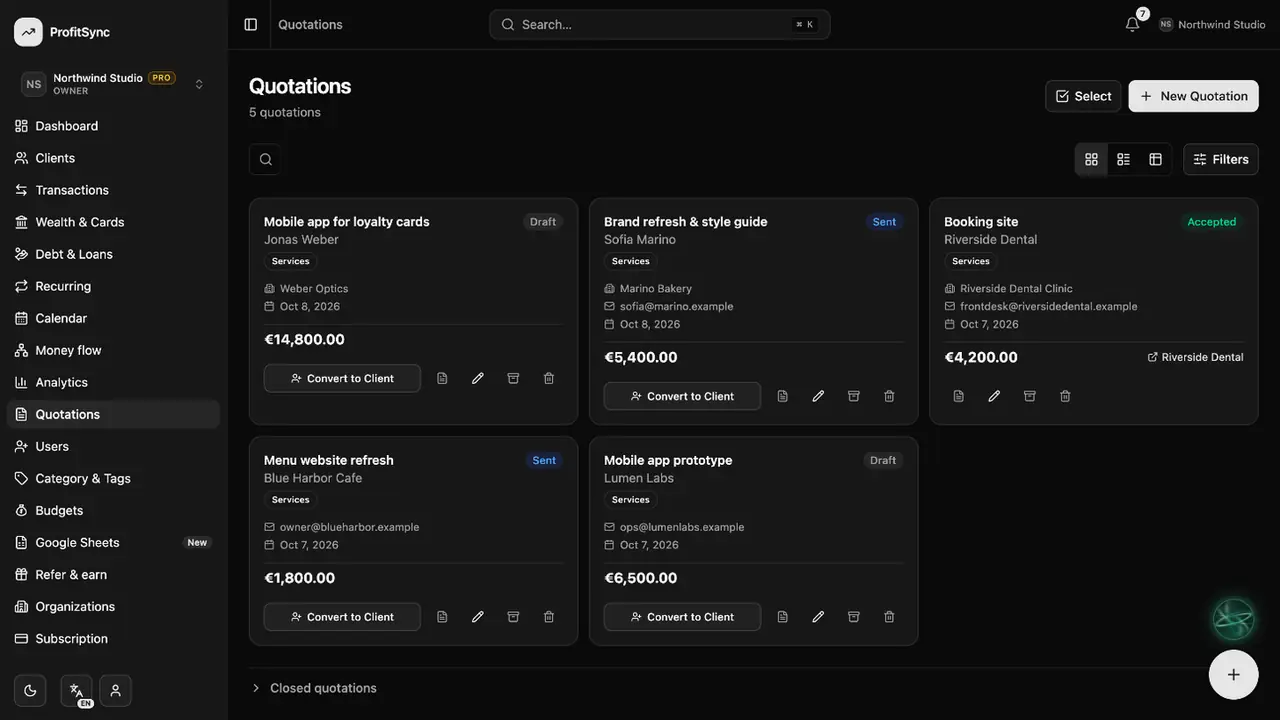
Open Quotations
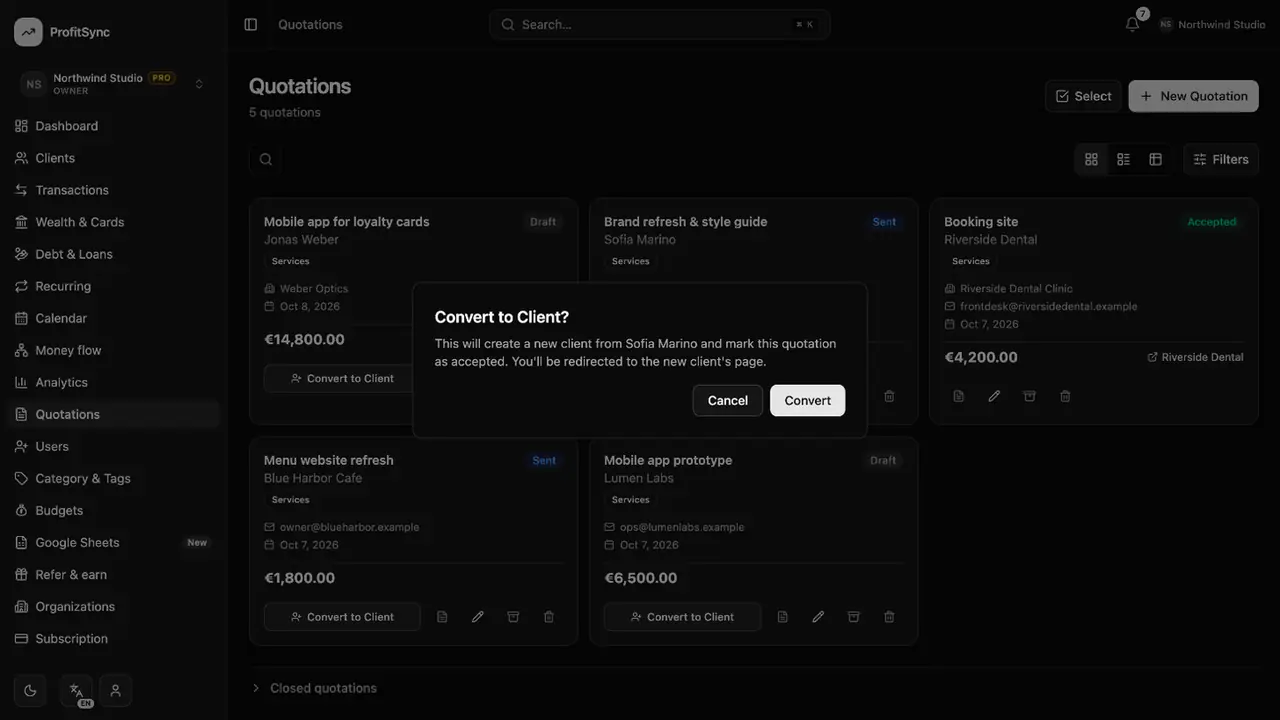
Every quote shows its prospect, amount, date and status: Draft, Sent, Accepted or Rejected.
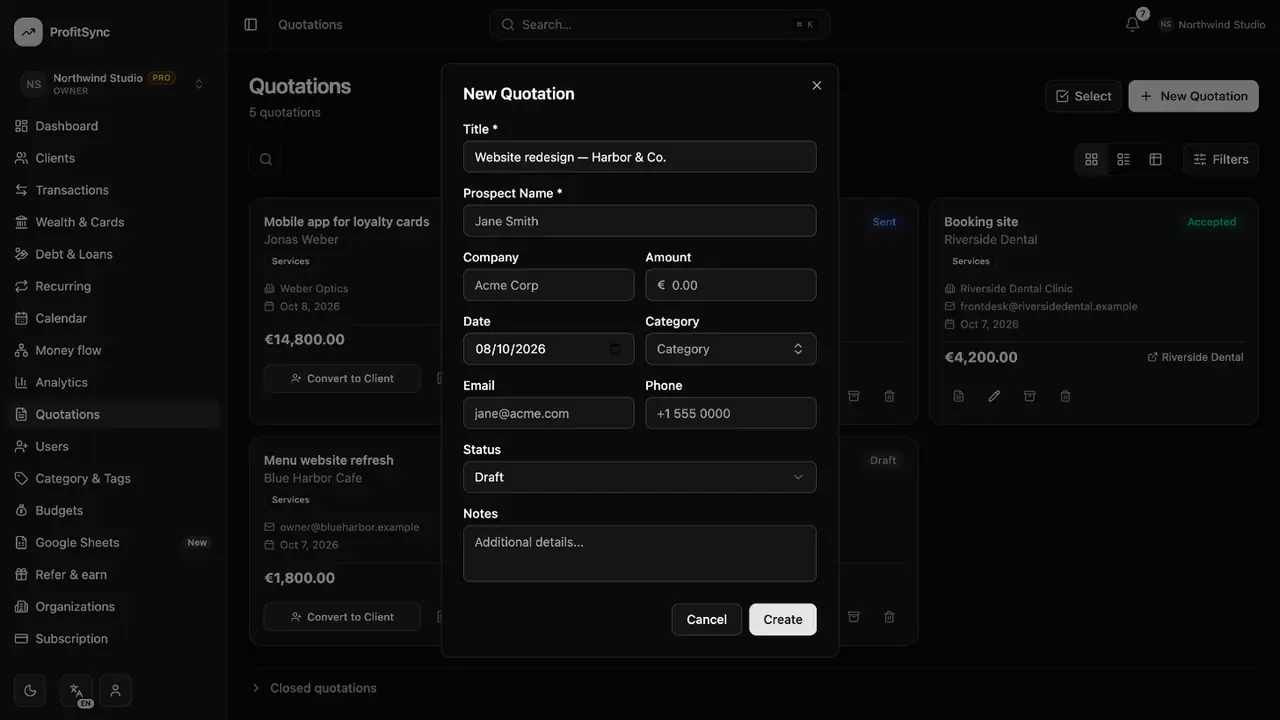
Create a quotation
Click New Quotation and enter the title, prospect, company, contact details and amount.
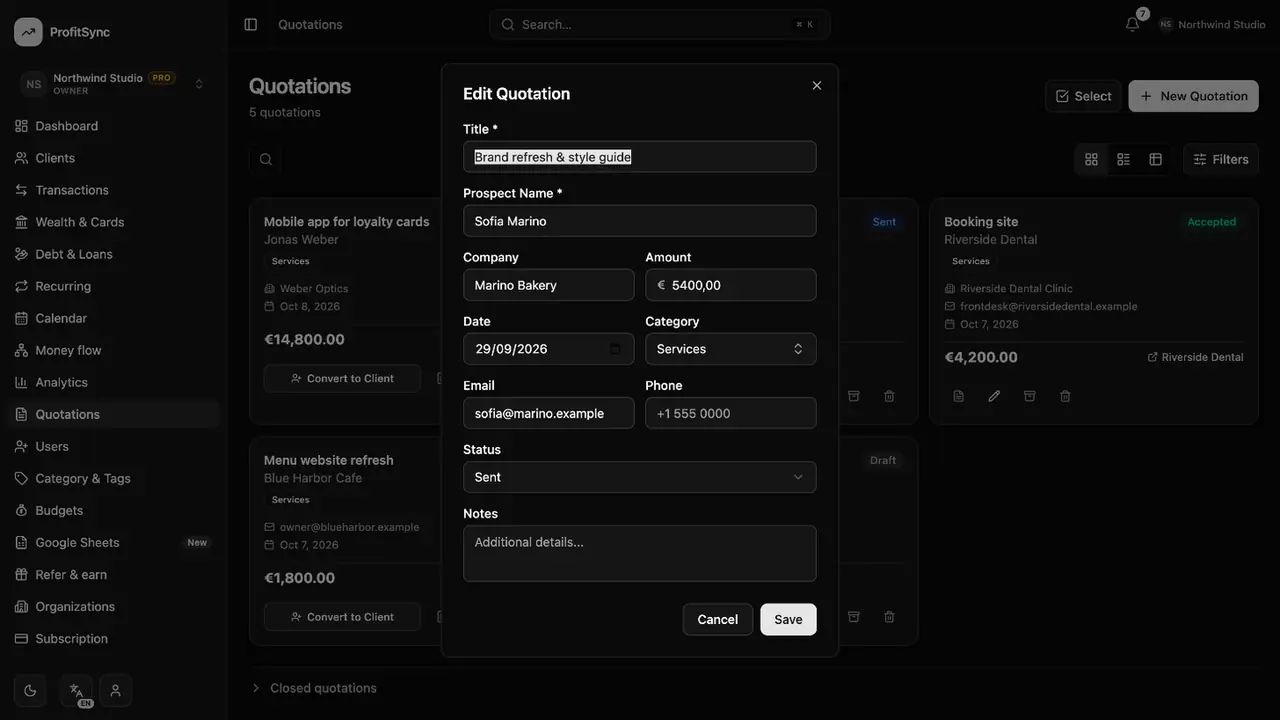
Track its status
Edit the quote to move it from Draft to Sent, then to Accepted or Rejected.
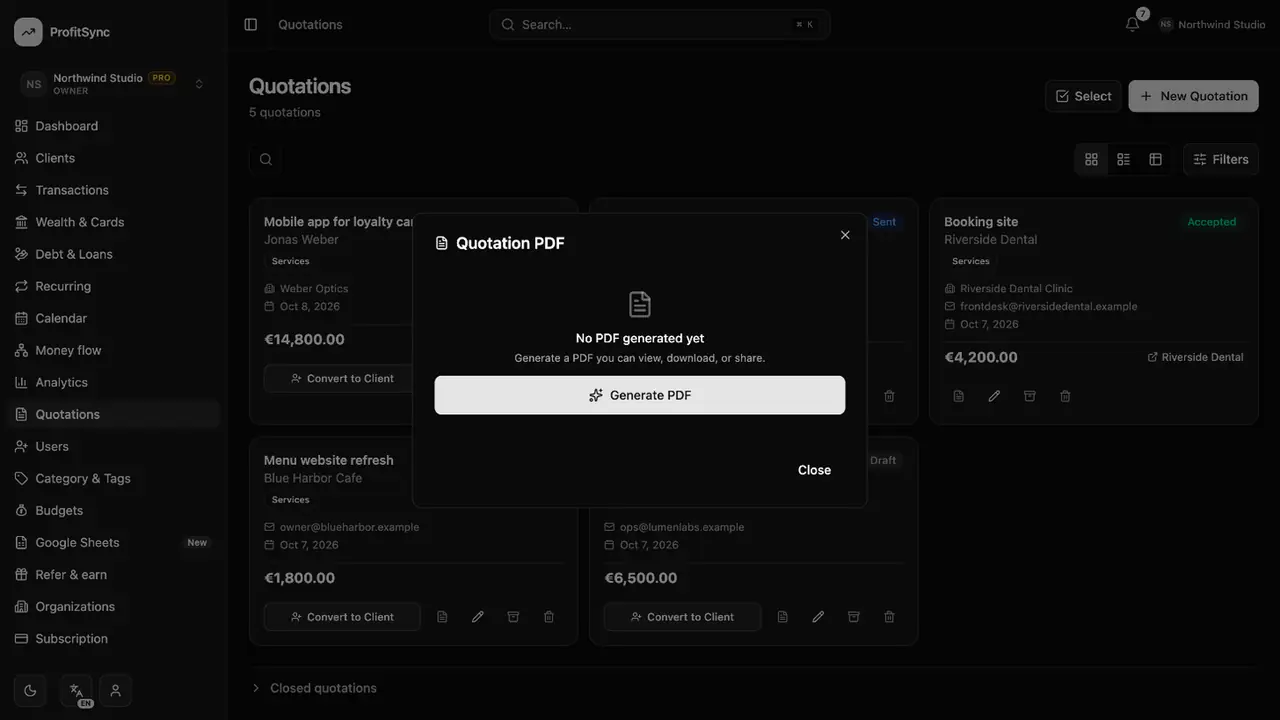
Share a PDF
Open the PDF view to download a clean quotation you can send to your prospect.
Convert to a client
When a deal is won, click Convert to Client and the prospect becomes a client in one step.
Good to know
- Closed quotations are folded away at the bottom of the page.
- Quotations are available in business workspaces.
Related guides
Write to us and a real person will reply. Contact support