Budgets
Set an overall spending limit and smaller budgets per category, then see at a glance what is left.
Step by step
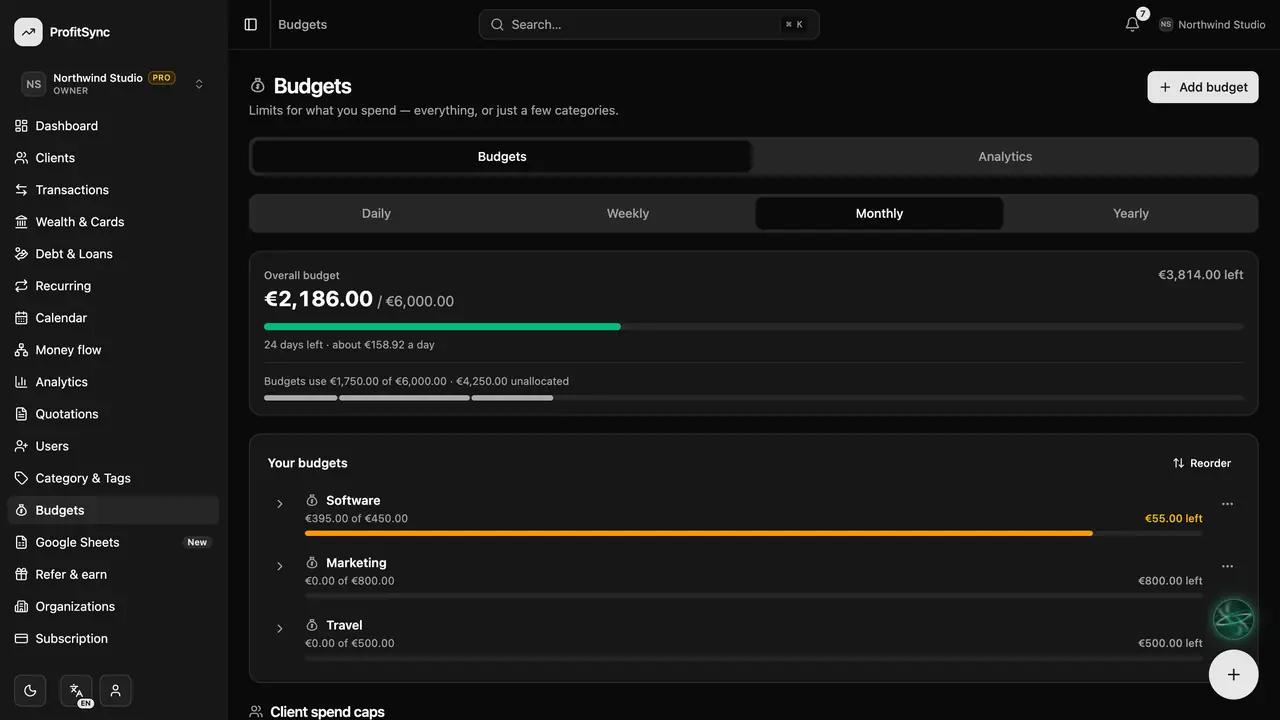
Open Budgets
Your overall budget sits at the top with how much is spent and left in the current period.
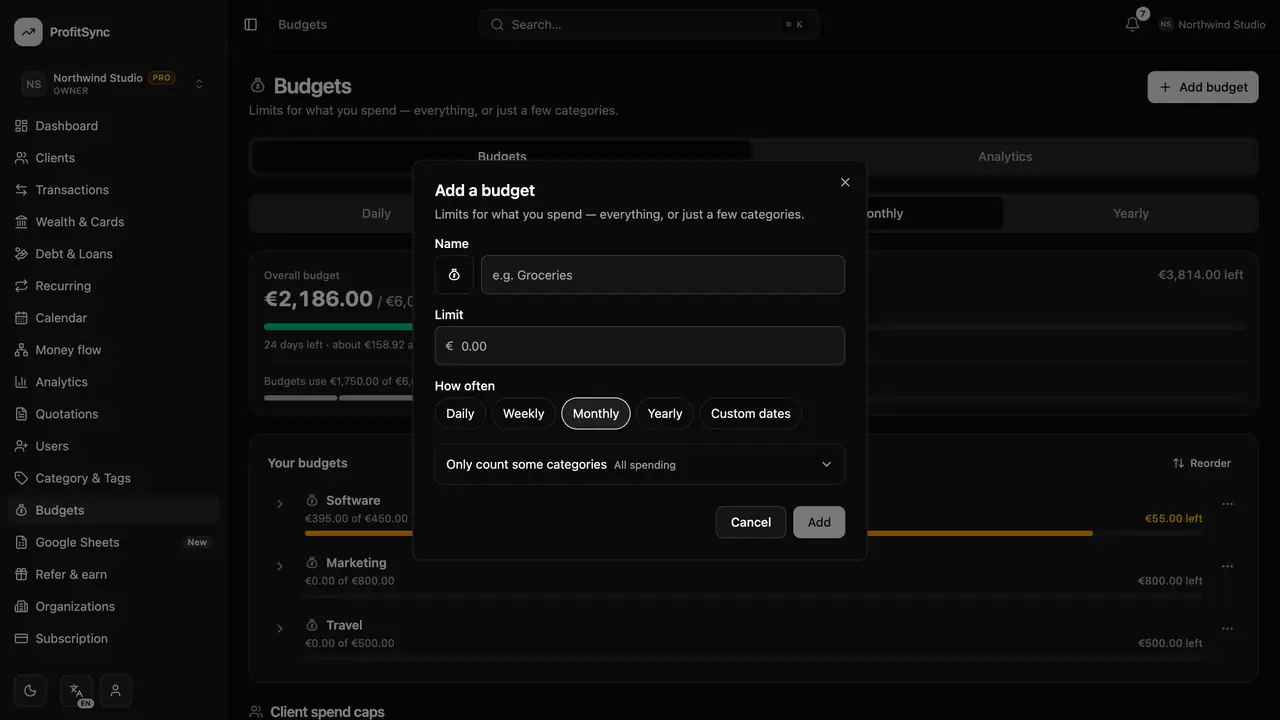
Add a budget
Click Add budget, give it a name, an amount and a rhythm — daily, weekly, monthly, yearly or once — and choose its categories.
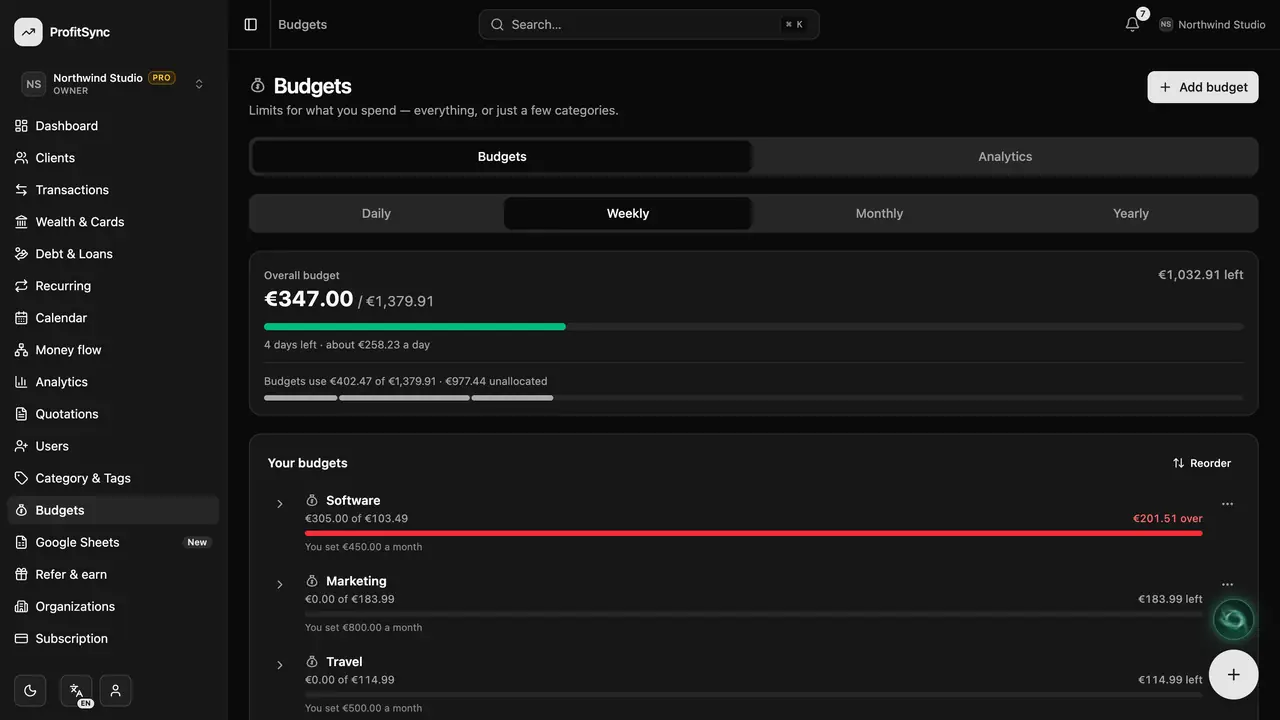
Switch the view
Use Daily, Weekly, Monthly or Yearly to see every budget converted into the same window.
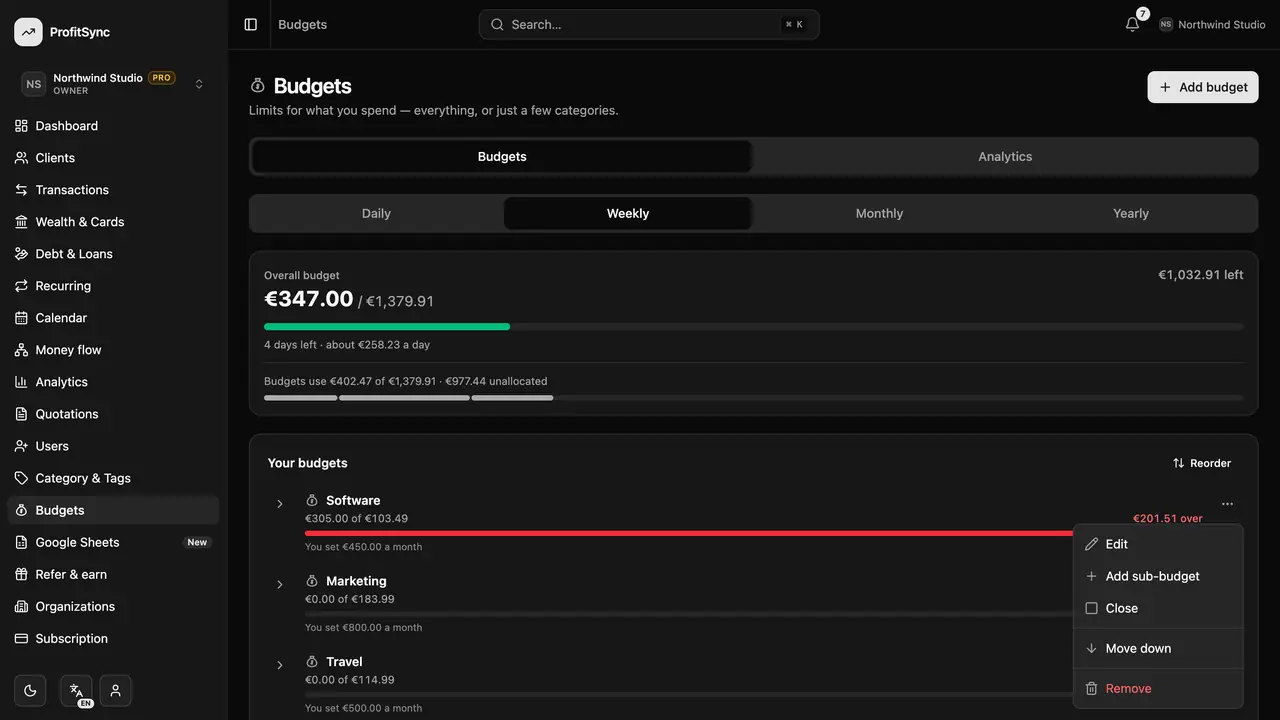
Split a budget
Open the ⋯ menu on a budget to add sub-budgets for its categories, or to edit and close it.
See the trends
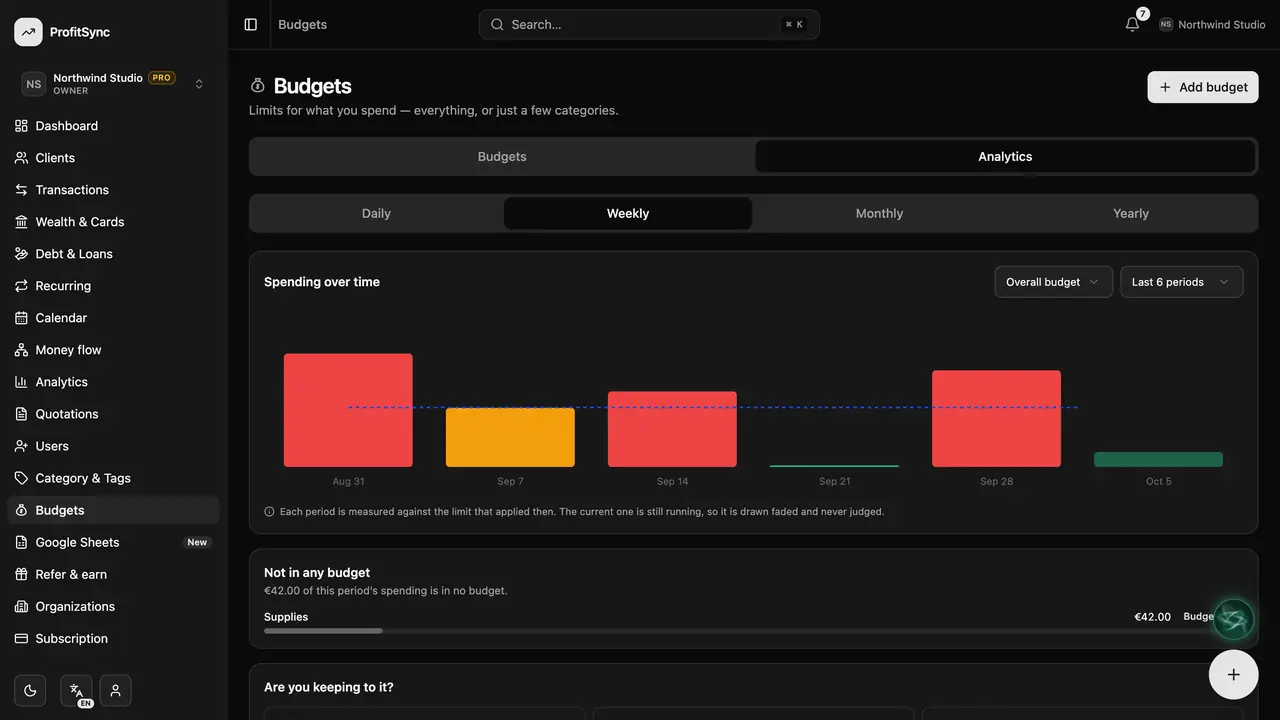
The Analytics tab shows how your spending compares with your limits over time.
Good to know
- You get a notification when a budget is close to its limit or goes over.
- In a business workspace you can also cap what you spend per client.
Related guides
Write to us and a real person will reply. Contact support