Debit & credit cards
Add your cards, see what you owe and your available credit, and pay statements on time with autopay.
Step by step
Open the Cards tab
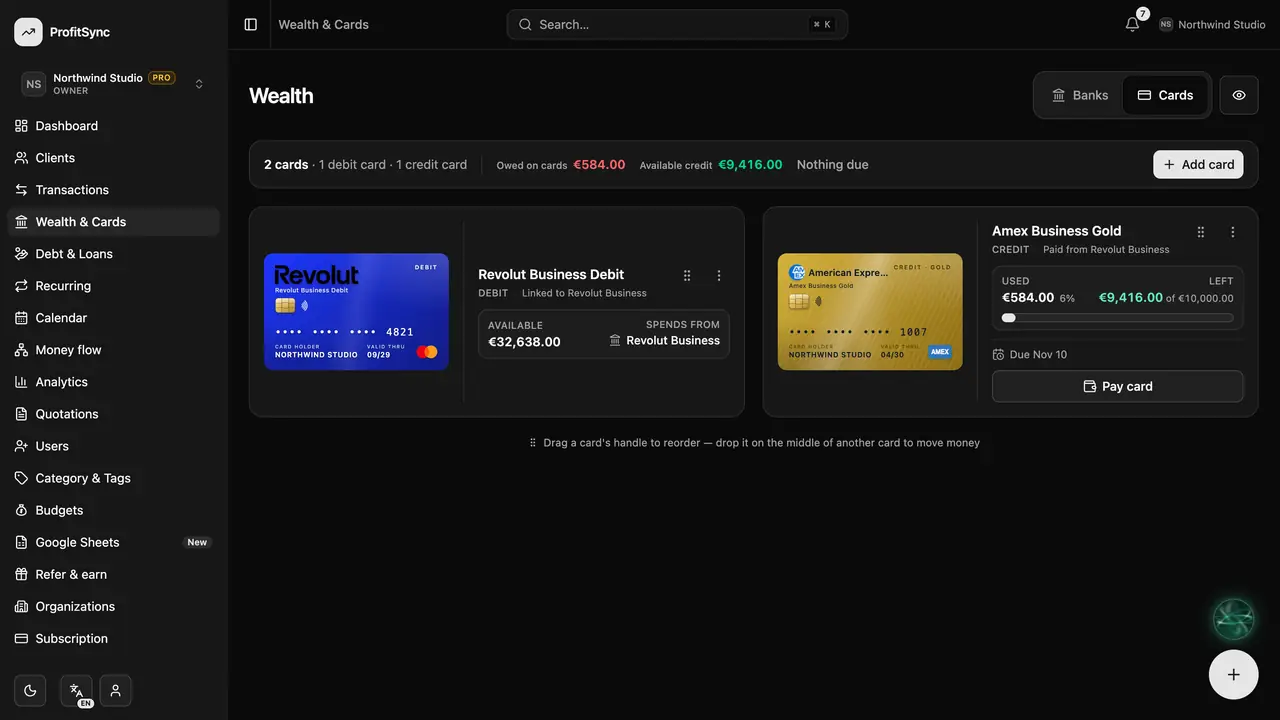
On Wealth & Cards, switch to Cards to see every card with what is used, what is left and when the next payment is due.
Add a card
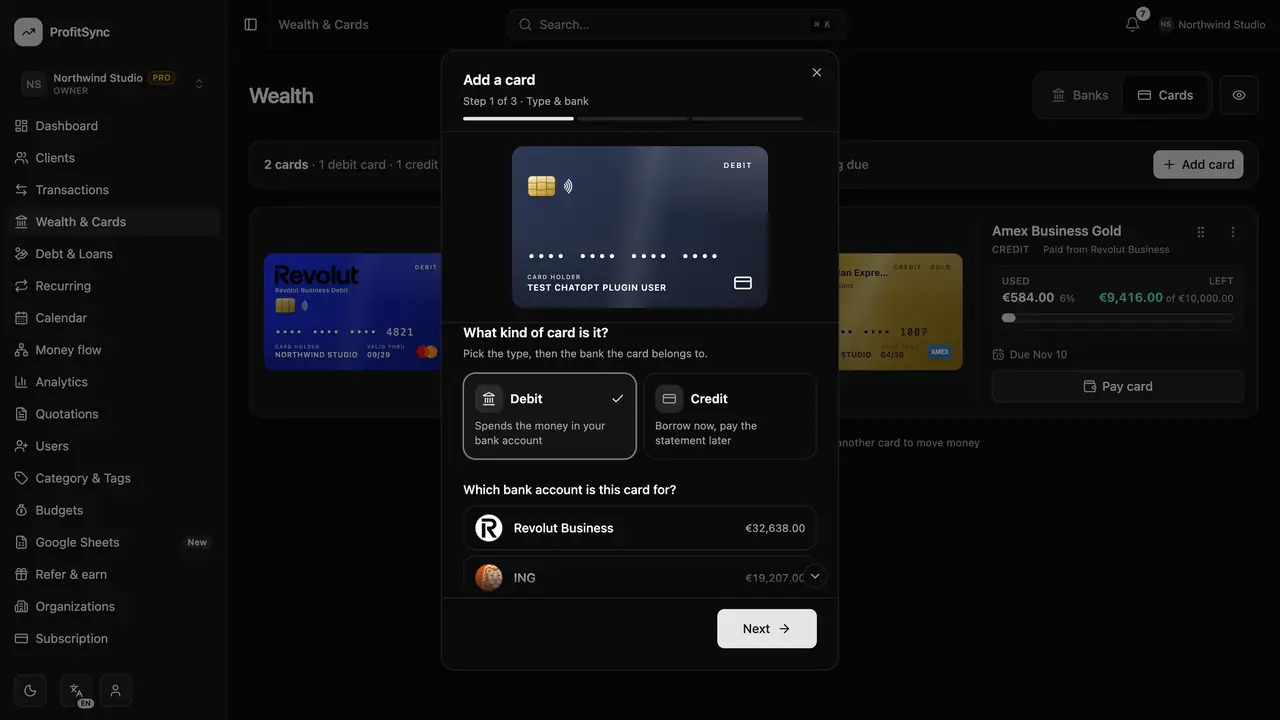
Click Add card, choose debit or credit, the bank that issued it and the last four digits. Credit cards also get a limit and statement dates.
Pay with a card
When you add a transaction, pick the card as the account. Purchases on a credit card raise what you owe.
Pay your statement
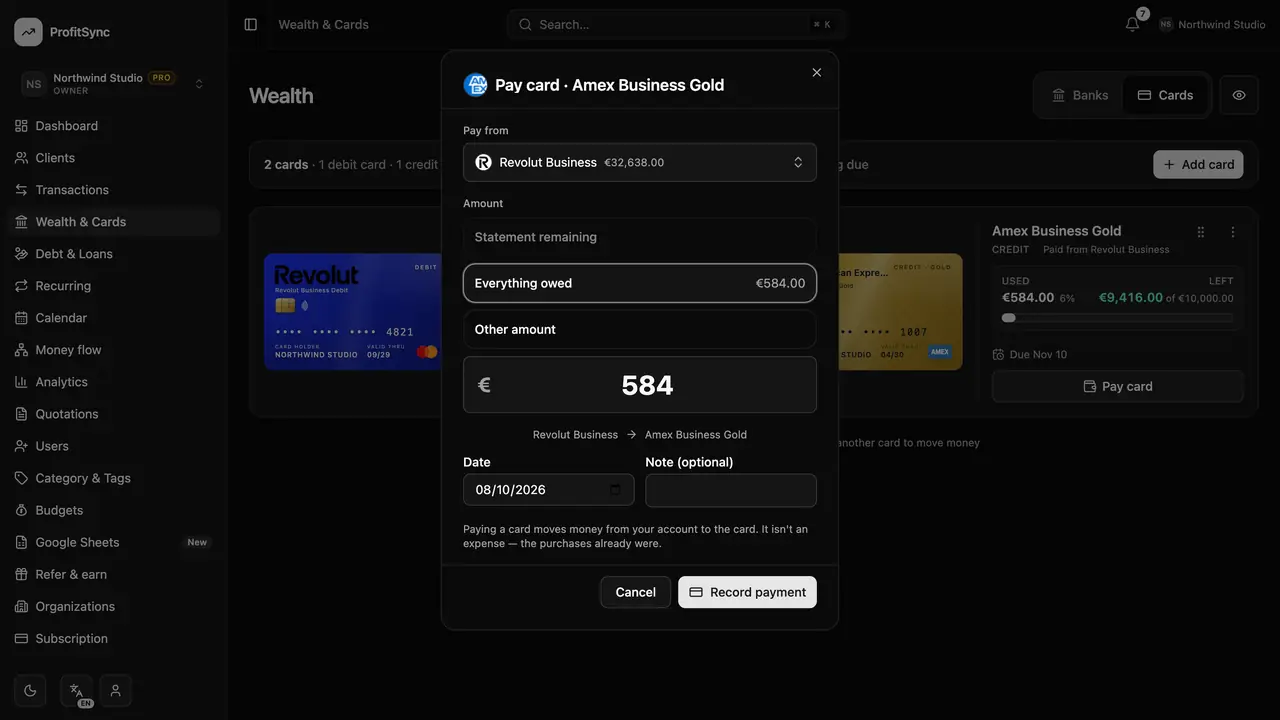
Click Pay card to record a payment from your bank. Turn on autopay and ProfitSync records it on the due date for you.
Good to know
- Only the last four digits are ever stored.
- Paying a credit card is a transfer, so your expenses aren't counted twice.
Related guides
Write to us and a real person will reply. Contact support