Spaces (savings goals)
Put money aside for goals like a trip or an emergency fund and watch each one grow.
Step by step
Open Spaces
In a personal workspace, open Spaces to see each savings goal and how close you are.
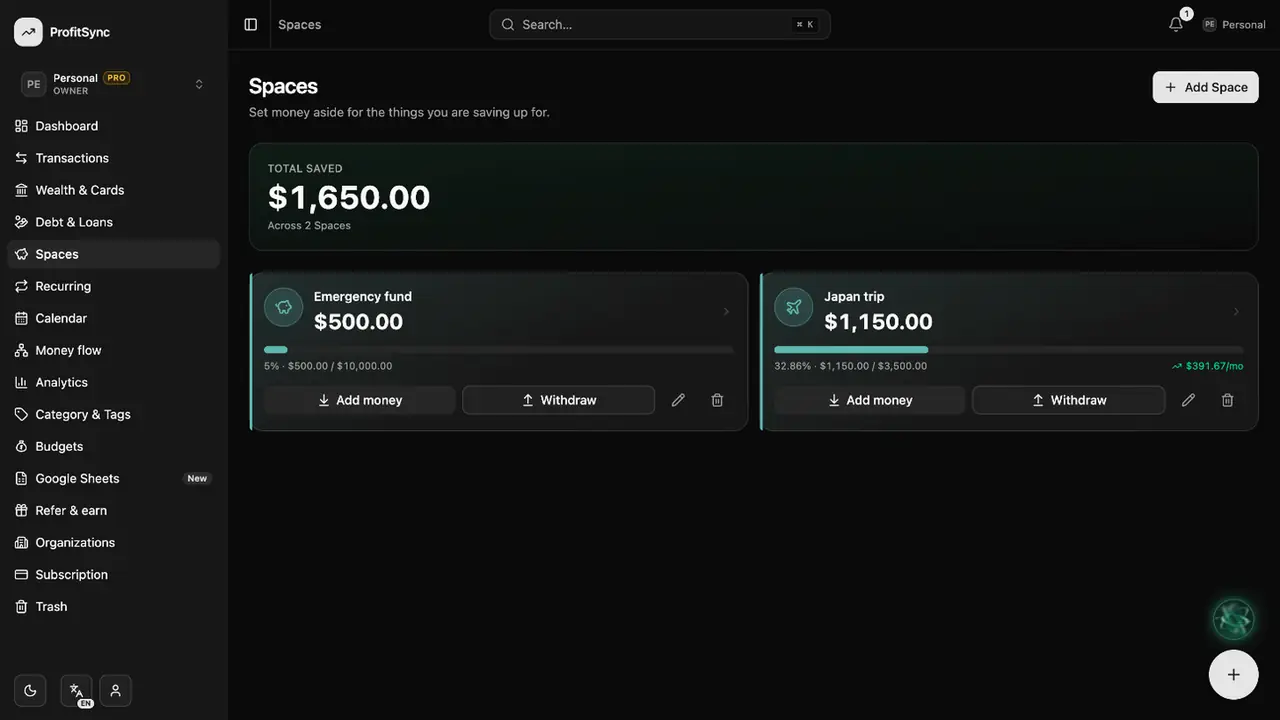
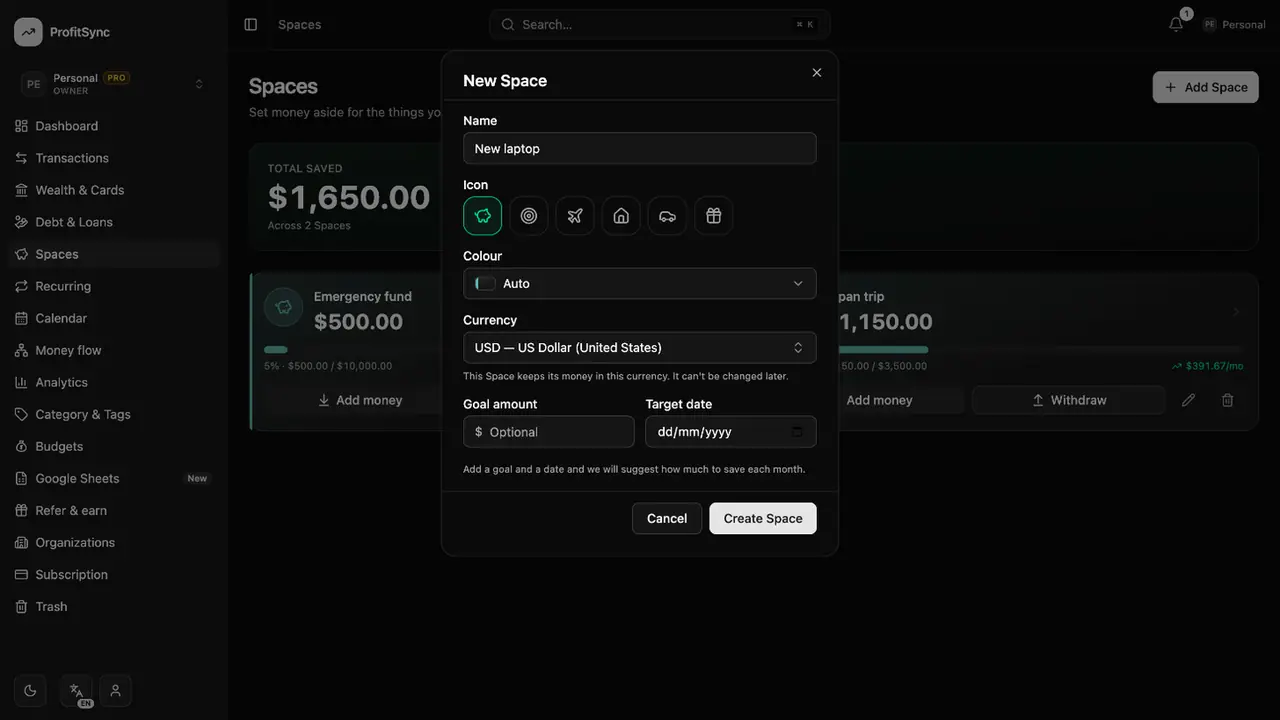
Create a space
Click New space, give it a name, an icon, an optional goal amount and a target date.
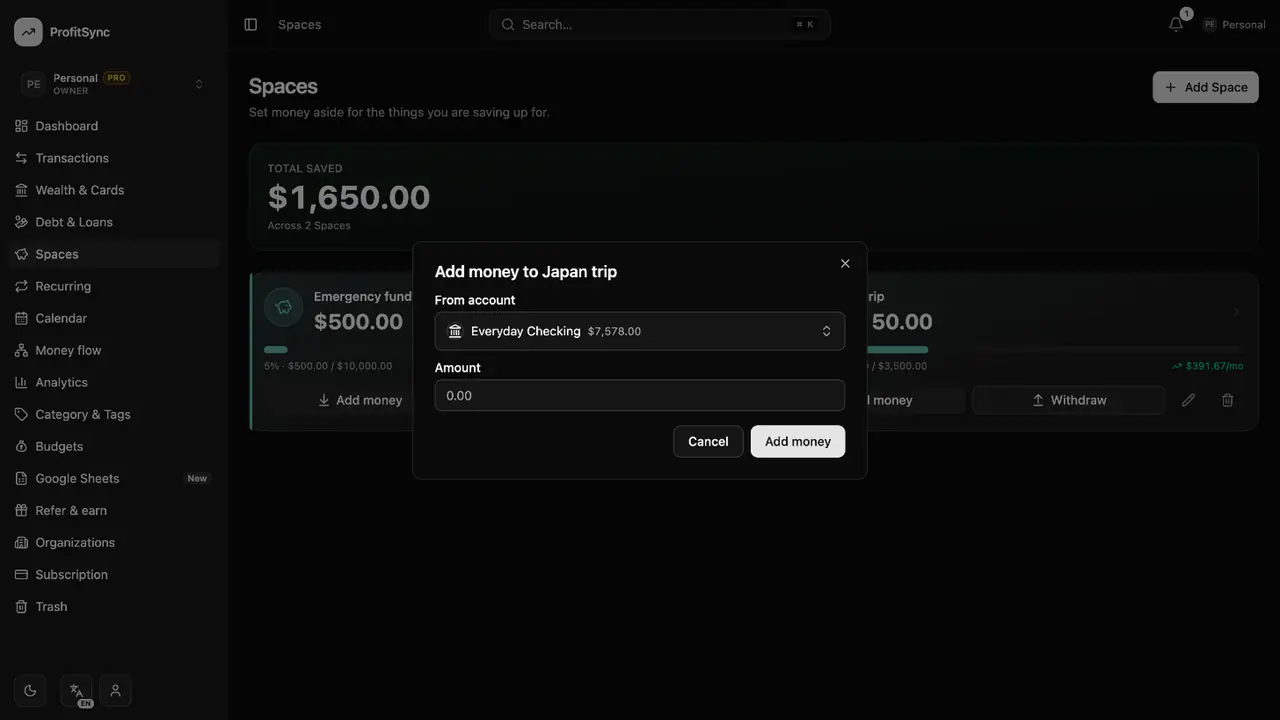
Add money
Move money in from a bank or cash account. It is a transfer, so it isn't counted as spending.
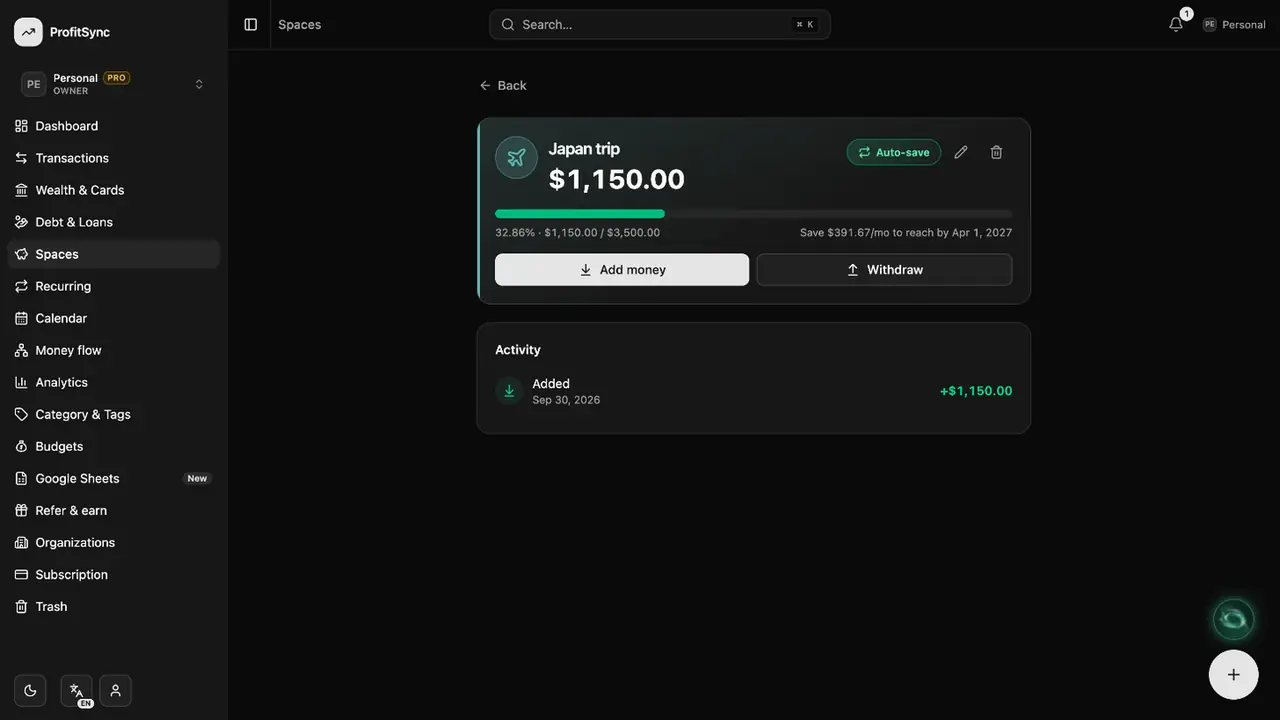
Save automatically
Turn on auto-save to move a fixed amount into the space on a schedule.
Good to know
- Spaces are part of your net worth, so saving never makes you look poorer.
- Spaces are available in personal workspaces.
Related guides
Write to us and a real person will reply. Contact support