Import & export transactions
Bring in a bank statement from CSV, Excel or PDF, and export your ledger to CSV whenever you need it.
Step by step
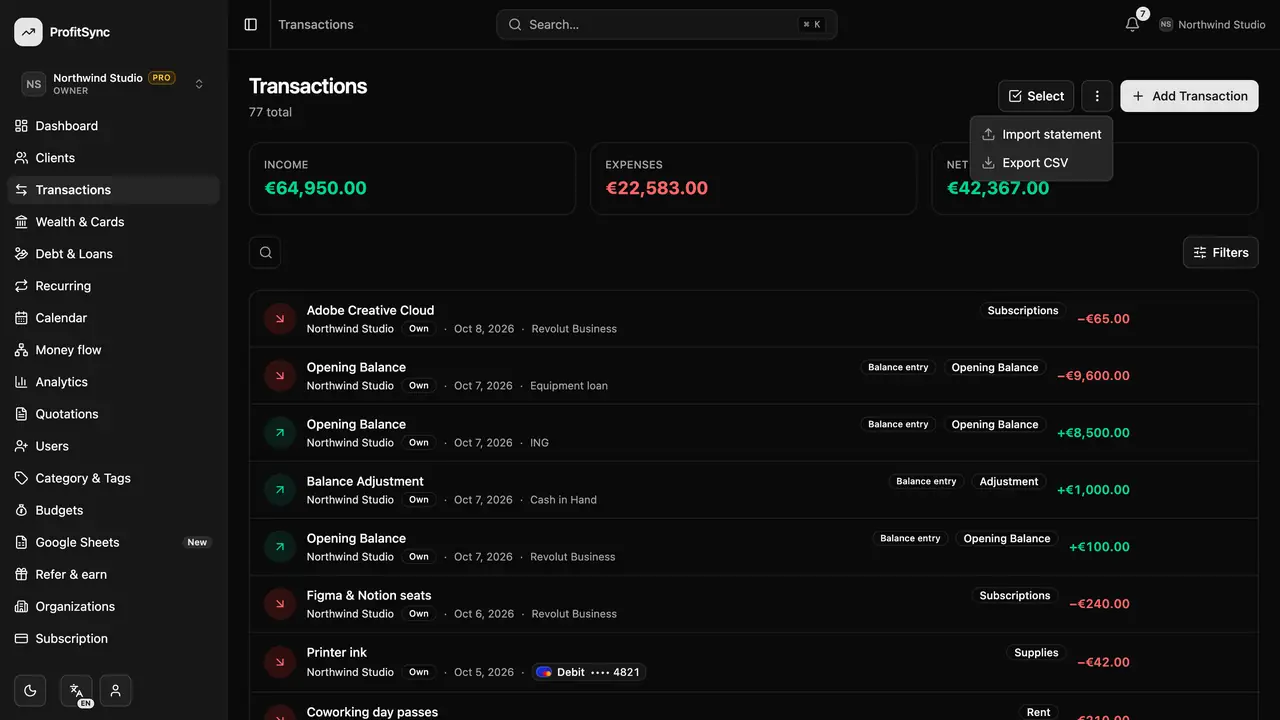
Open the import menu
On Transactions, click the ⋮ button next to Add Transaction and choose Import.
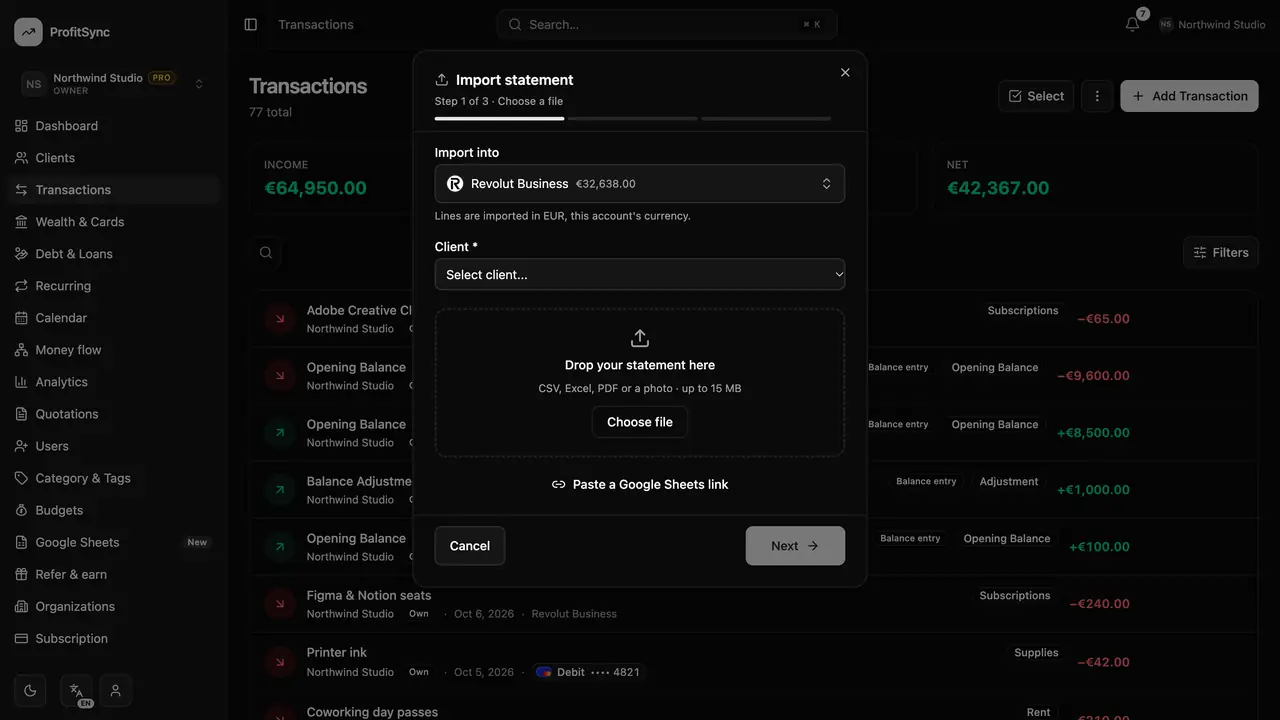
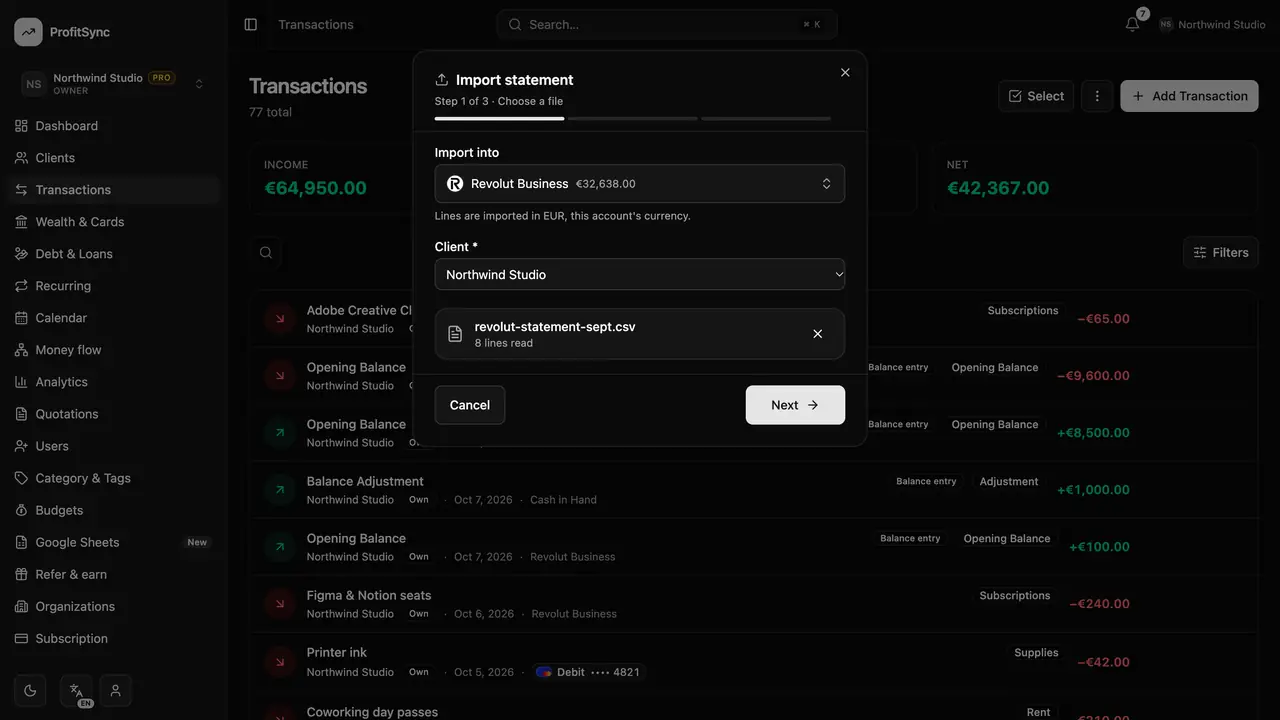
Choose your file
Pick a CSV, Excel or PDF statement. Text files are read on your device; a scanned PDF or photo can be read with AI.
Match the columns
Tell ProfitSync which columns hold the date, description and amount, and which account the statement belongs to.
Review before importing
Possible duplicates are flagged and categories are suggested. Untick anything you don't want, then import.
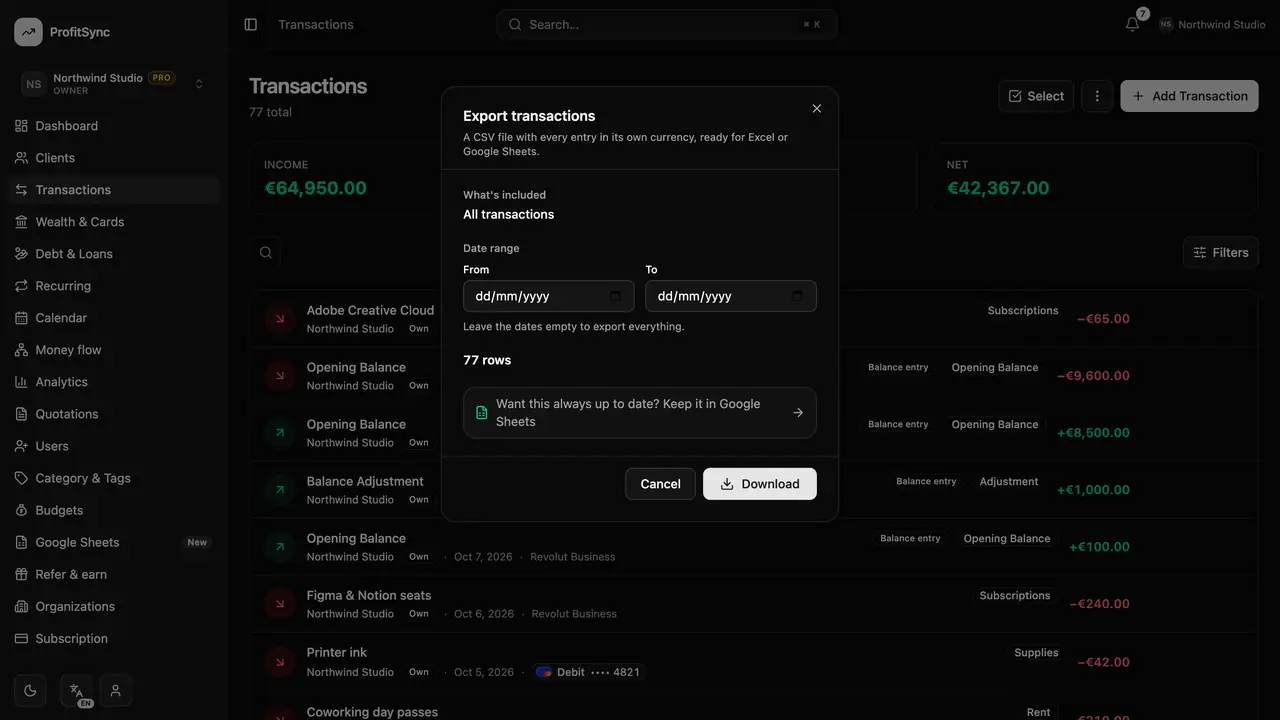
Export when you need it
Choose Export from the same menu to download a CSV of the entries that match your current filters.
Good to know
- Importing the same file twice adds nothing new — rows already imported are skipped.
- Changed your mind? Undo an import right after it finishes.
Related guides
Write to us and a real person will reply. Contact support