Transactions
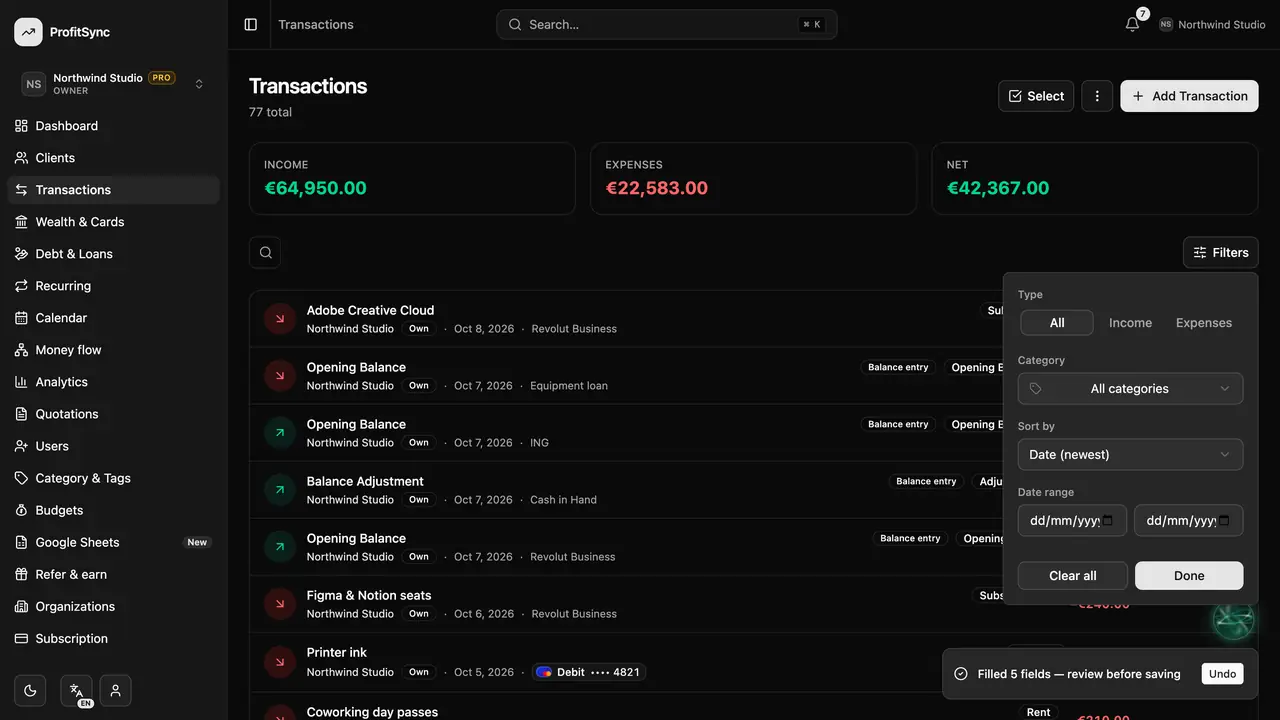
Record income, expenses and refunds, attach receipts, split payments and find any entry in seconds.
Step by step
Open Add Transaction
Go to Transactions and click Add Transaction, or use the + button from any screen.
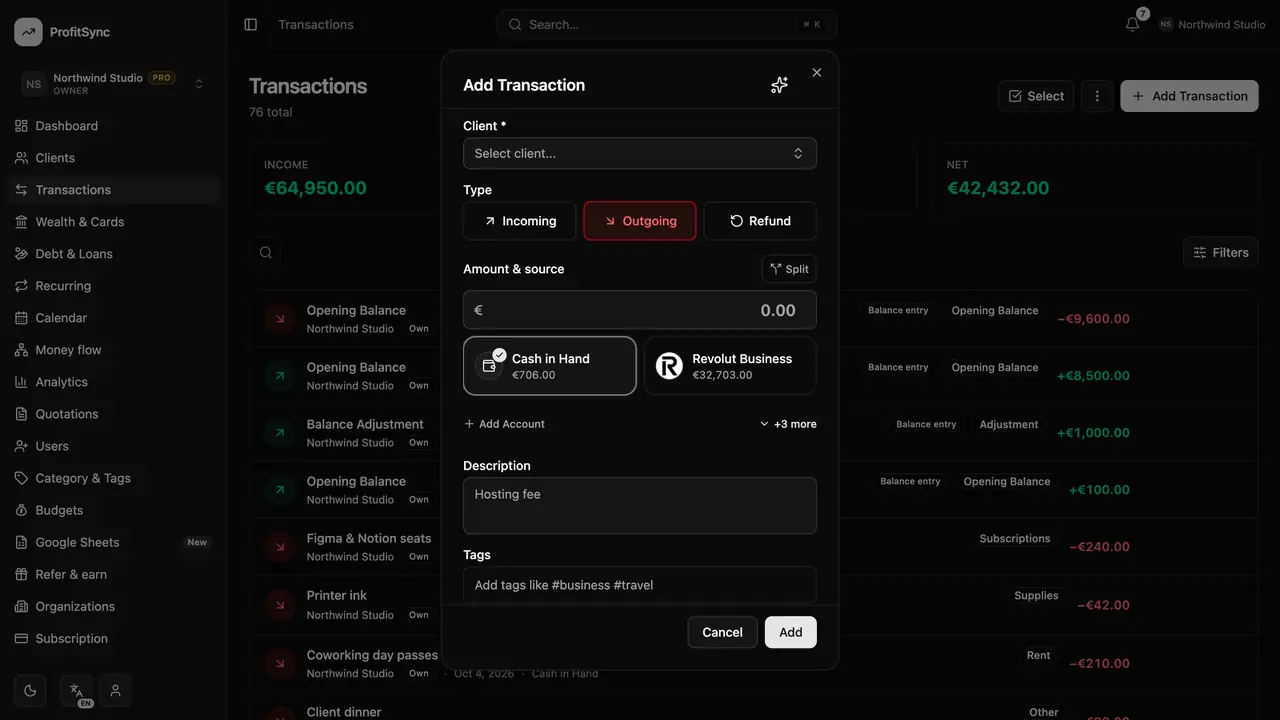
Choose the type
Pick Incoming for money you receive, Outgoing for money you spend, or Refund when money comes back for something you paid.
Enter amount and account
Type the amount and choose which account the money moved through — cash, a bank or a card. Use Split if it came from more than one.
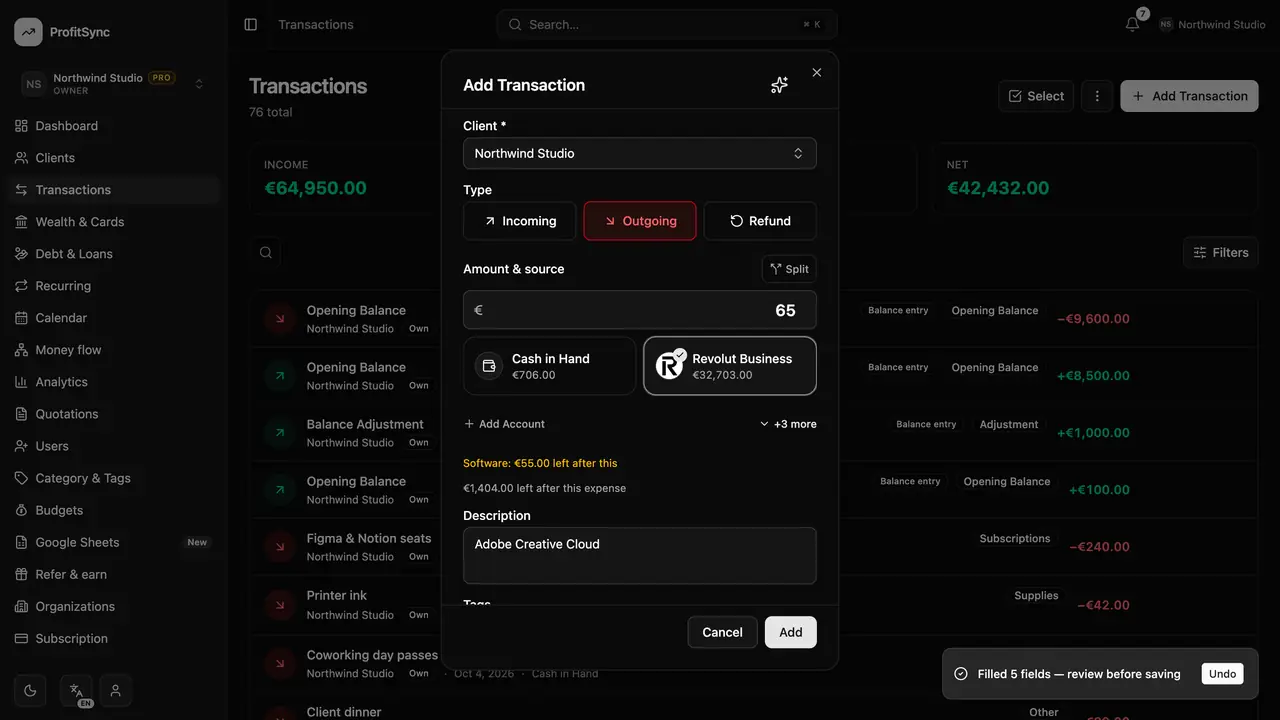
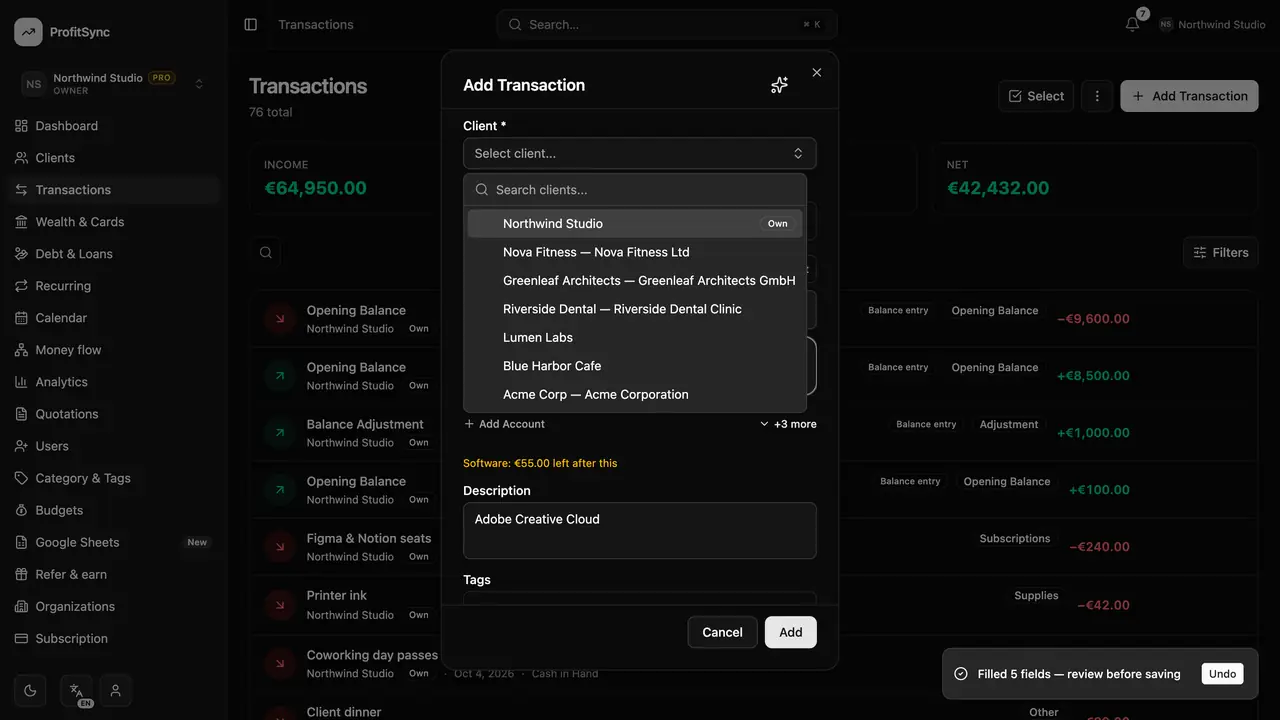
Add the details
Add a description, a category, tags and the date. In a business workspace, also pick the client it belongs to.
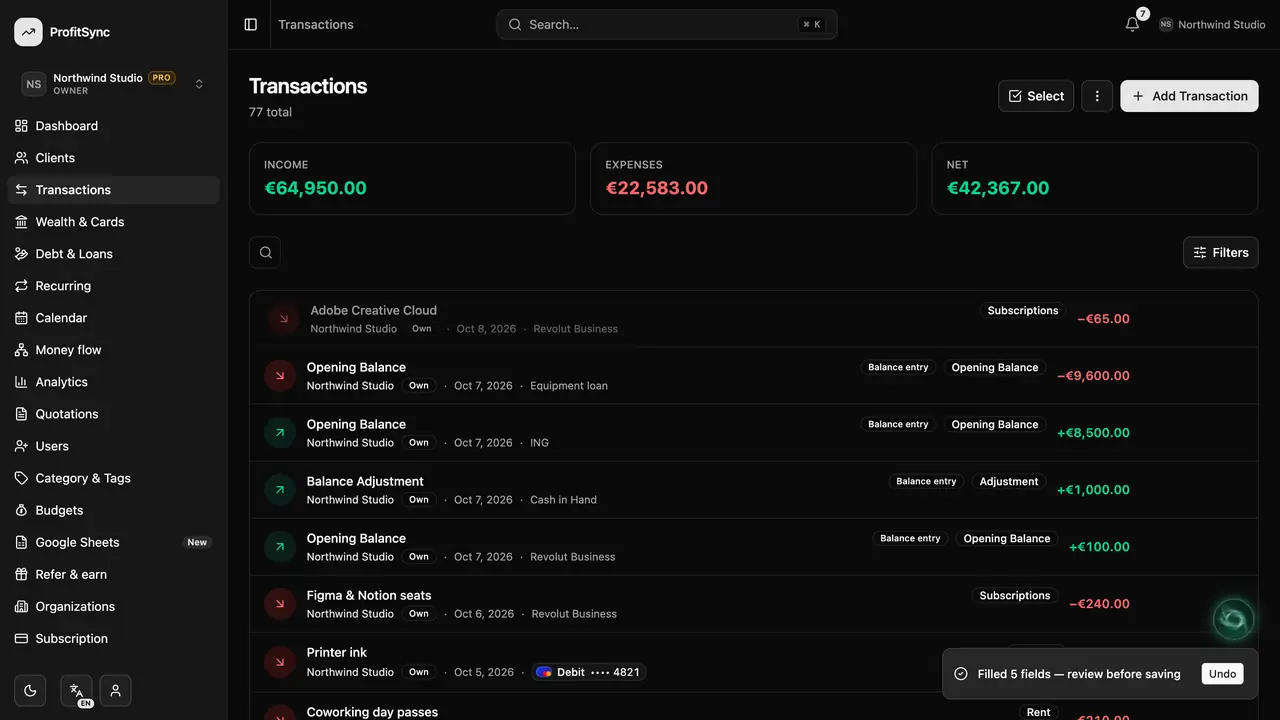
Save and review
Click Add. The account balance updates instantly and the entry appears at the top of the list, where you can open, edit or delete it.
Filter and search
Use the search box and Filters to narrow the list by date, category, client, account or tag. The totals above follow your filters.
Good to know
- Paying a credit card or moving money between your accounts is a transfer, not an expense — use Transfer on the Wealth page.
- Deleted entries go to Trash, so you can restore them later.
Related guides
Write to us and a real person will reply. Contact support