Google Sheets sync
Keep your whole workspace in one Google Sheet that updates on its own — and edit it back.
Step by step
Open Google Sheets
The page explains what goes into your sheet: a tab per account, plus clients, budgets and more.
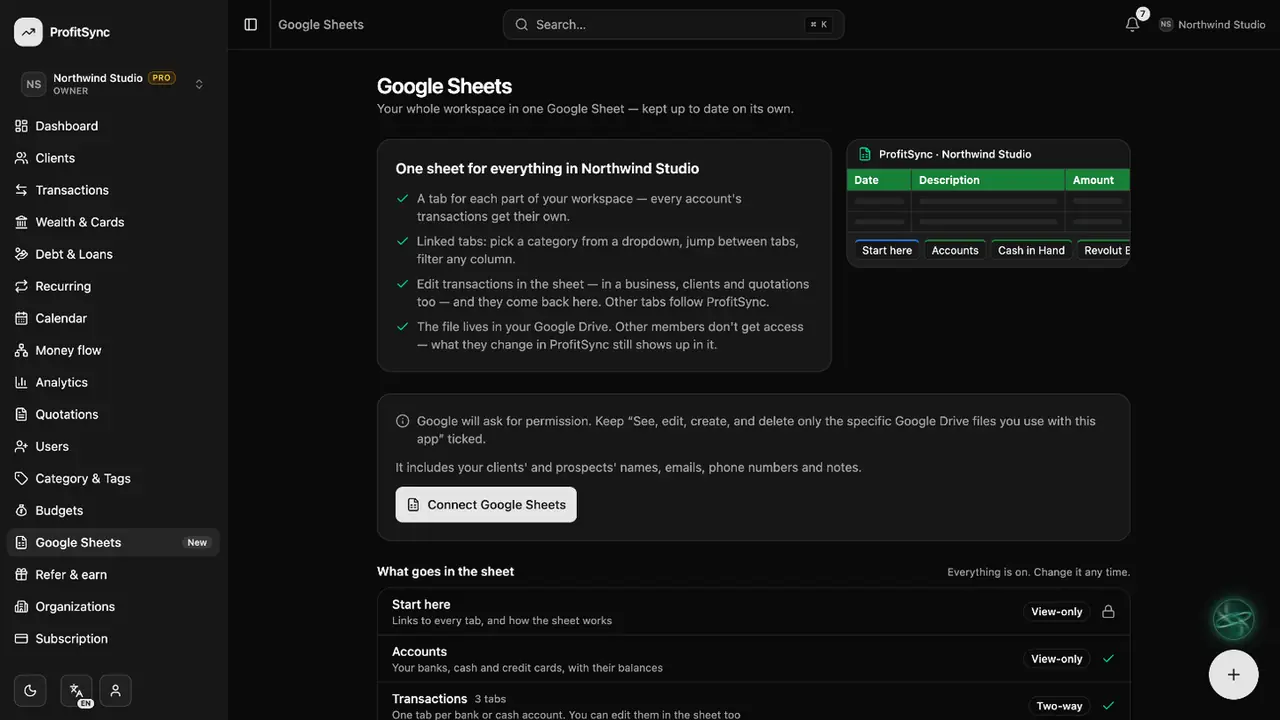
Connect your Google account
Click Connect Google Sheets and allow access. ProfitSync can only see the one file it creates.
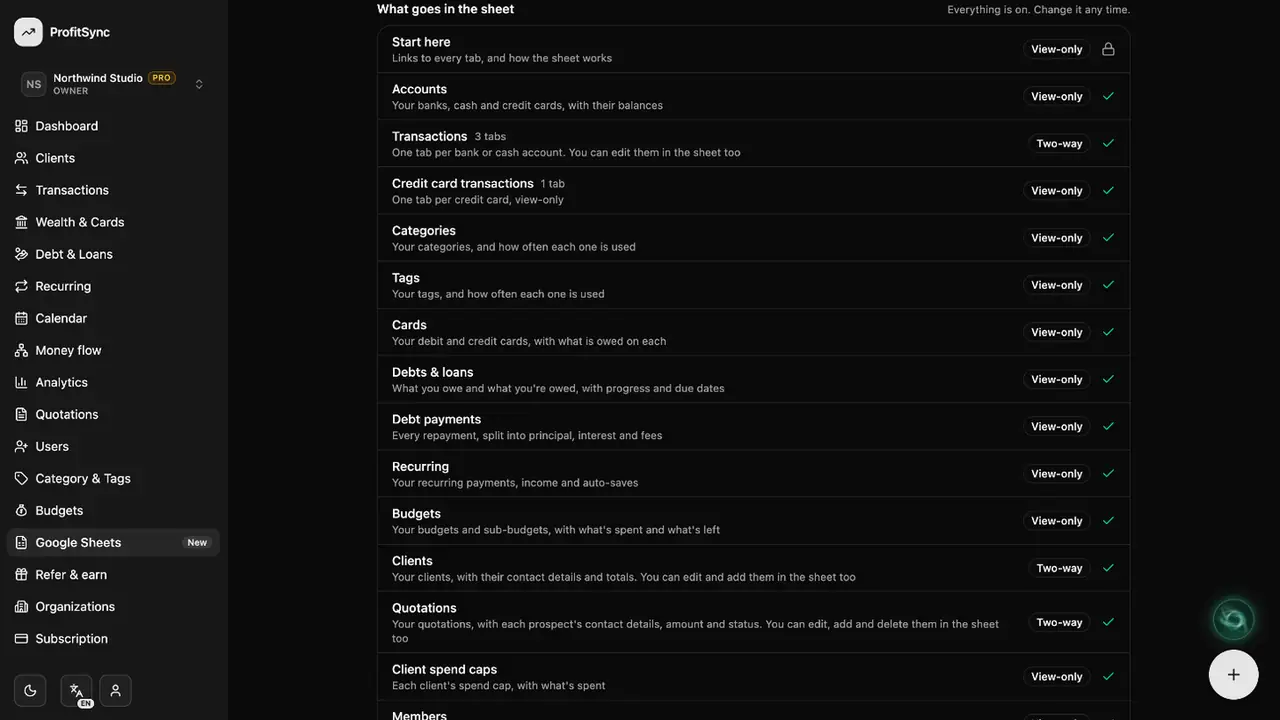
Choose what to include
Turn sections on or off. Transactions can be edited in the sheet and come back into ProfitSync.
Open your sheet
Click Open in Google Sheets any time. It stays up to date as you work.
Good to know
- Only the workspace owner who connected the sheet sees its link.
- Use Check now if you have just edited the sheet and want changes in right away.
Related guides
Write to us and a real person will reply. Contact support